


Themepack - App Icons, Widgets
4.645.77K Reviews
App Specs
- Version
- 1.0.0.4179
- Updated On
- License
- Free
- Downloads
- 100,000,000+
- Developer
- YoloTech
- Categories
- Personalization
- Platform
- Android, iOS
Screenshots
 Analysis by AppCompare
I like changing the look of my phone now and then, but doing it piece by piece can turn into a fiddly project. Themepack - App Icons, Widgets brings icon and widget decoration together, which makes it appealing when I want a coordinated home screen without starting from scratch. It is a free personalization app from YoloTech, rated Teen, and it has attracted a 4.7 average from around 1.2 million ratings, alongside over 50 million installs.
How to make a home screen feel intentional
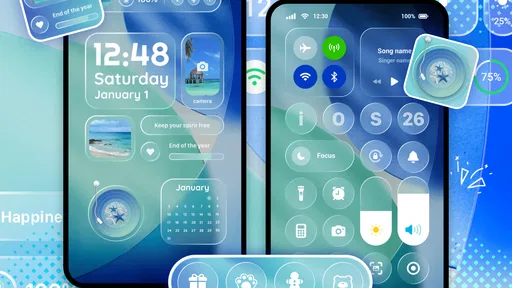
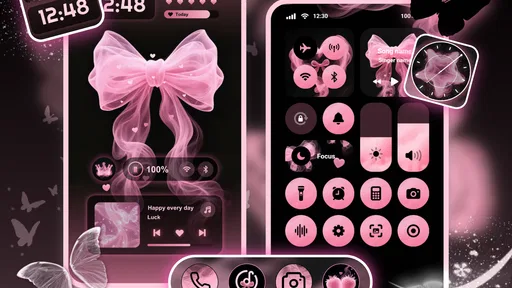
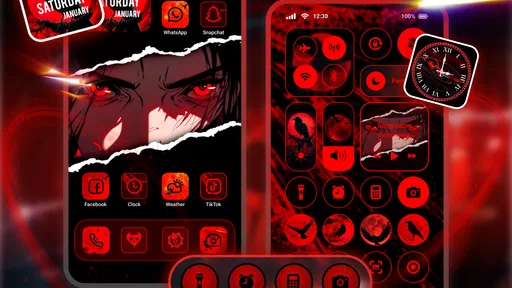
The main appeal is having visual elements to browse in one place: app icons, widgets, and themes that can help a screen feel more considered. I would approach it as a styling kit rather than a tool that changes how the phone works. It can give familiar apps a different visual identity, while widgets add a focal point that breaks up rows of icons.
That distinction matters. A themed screen is most satisfying when it stays readable and practical, not when every available space is filled. I’d start with one look that suits the wallpaper I already use, then choose a small number of icons and a widget that support it. This is also a useful way to test whether a theme works in everyday lighting and at a glance before committing to a complete redesign.
Browsing, mixing, and keeping the setup manageable
The range described in the app includes different visual moods, from minimal designs to brighter styles, and the themes are organized to make browsing less random. I found myself treating that organization as a shortcut: rather than searching for a perfect icon one by one, I’d pick a general direction first and see which elements fit. Seasonal looks can be fun, but a restrained palette is easier to keep using after the novelty wears off.
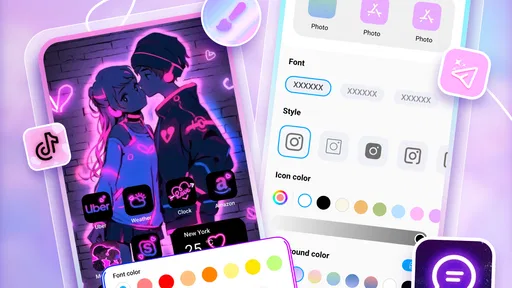
Mixing icons and widgets gives you more control than choosing one preset and accepting every part of it. The trade-off is that choosing individual pieces takes more attention. A practical workflow is to decide on two or three colors, settle on a wallpaper, and then make the icon choices. If you start with icons before deciding on the background, you may end up with a collection that looks good individually but feels scattered together.
For a realistic everyday use, imagine refreshing your phone on a quiet evening before a busy week. You could choose a calmer theme, add a photo widget that makes the screen feel personal, and leave your most-used apps easy to spot. The point is not to keep tinkering every day; it is to make the screen pleasant enough that you can stop thinking about its appearance and get on with using it.
Making a custom widget useful, not just decorative
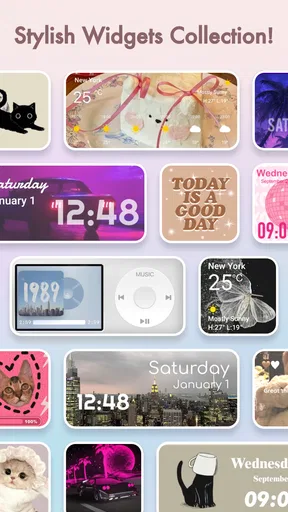
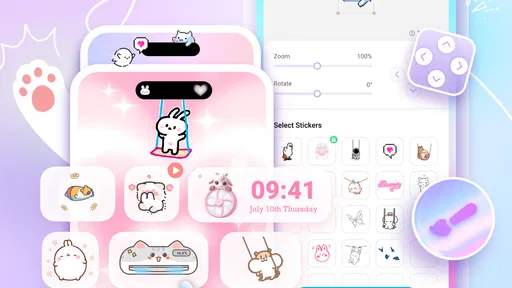
The option to create custom widgets with personal photos or motivational quotes is a small but worthwhile way to make the result feel less like a preset. I’d use a photo that has a clear subject and enough visual breathing room, since a busy image can compete with icons and text. A short quote is also more likely to remain legible and meaningful than a long block of words squeezed into a small space.
Worth Reading Before You Choose

Baby Panda World Brings Quick Play to Modern Phones, but Its Game Library Feels Busy

ESPN’s Live Game View Makes Following Close Games Easier

QuizzLand Review: A Good Fit for Short Trivia Breaks, Not Every Player

Basketball Stars: Multiplayer Is Fast, but Can It Recover When Matches Go Wrong?

WEBTOON Turns Phone Updates Into a Better Reading Routine

Link to Windows Runs on Shared Habits, Not Social Feeds
There is a useful trade-off here: a personal image can make the screen warmer, but it can also make a home page visually crowded. I’d place a custom widget where it has room around it and keep the busiest app shortcuts on another part of the screen. That simple separation helps the widget feel deliberate while preserving quick access to everyday apps.
Customization Galore
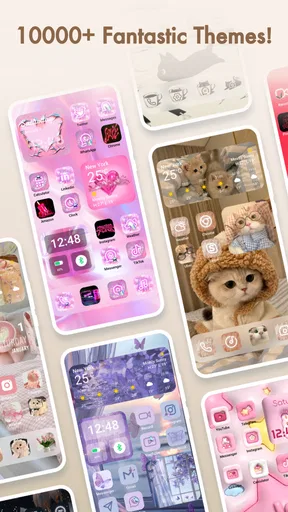
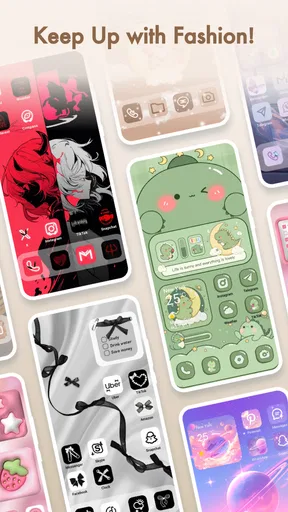
First things first, let's talk customization. Themepack offers an impressive array of app icons and widgets to jazz up your home screen. Whether you're into minimalistic designs or you love a pop of color, there's something here for everyone. I spent a good chunk of my afternoon just scrolling through the endless options. It felt like a candy store for my phone!
The app is super easy to navigate, and everything is neatly categorized. You’ve got themes for every mood and season. Halloween? Check. Summer vibes? Double check. And the best part? You can mix and match icons and widgets to your heart's content. It’s like a digital playground.
User-Friendly Interface
The installation process is a breeze. Seriously, I’ve dealt with apps that make you jump through hoops just to set up a new icon, but not this one. With a few simple clicks, your screen can transform into whatever aesthetic you’re feeling that day. The app also provides a neat tutorial for newbies, which is a nice touch if you're a first-timer in the customization world.
Even with a tutorial, I’d take a moment to check the result after applying a change rather than trying to redo the whole screen at once. That makes it easier to spot an icon that clashes or a widget that takes up more attention than expected. It is also a sensible way for a first-time user to learn the setup process without turning a casual experiment into a long session of undoing choices.
Speed expectations and heavier sessions
For an app centered on visual browsing and home-screen decoration, I’d expect the busiest moments to be scrolling through choices, comparing styles, and applying several elements in one sitting. That is a different kind of workload from a game or a video editor: the main demand is the time and attention involved in choosing a look, rather than sustained interaction with complex tools. The catalog’s breadth is part of the fun, but it can also make a quick makeover stretch into a longer browse.
My advice is to make one change at a time, especially if you are deciding between a full theme and a more personal mix. Apply a few icons, check the home screen, then decide whether a widget improves the layout. This gives you a clear sense of what each choice contributes and avoids the common trap of selecting many attractive pieces that do not work well together. It is a more controlled workflow than changing everything at once and trying to identify which element made the screen feel cluttered.
The original experience I found was smooth, with responsive widgets and icons loading quickly. That is encouraging for ordinary use, although no single smooth session can guarantee the same result on every device or after every system change. I’d judge performance by the task at hand: browsing and arranging should feel straightforward, while the finished screen should remain legible and convenient when I am in a hurry.
Performance and Experience
Now, let’s get into the nitty-gritty of performance. I was pleasantly surprised by how smoothly everything ran. No lagging or glitches, which is always a win in my book. The widgets are responsive, and the icons load quickly, keeping my phone’s vibe on point without sacrificing performance.
For reliability, I would keep the distinction between the decoration app and the phone’s everyday essentials in mind. A home-screen makeover is easiest to enjoy when it does not interfere with the layout you rely on. Before changing a setup you use constantly, it is sensible to note which apps you need easiest to reach and preserve that arrangement in the new design. If a visual change stops feeling practical, scaling it back is better than keeping a pretty screen that slows down routine actions.
As for resource demands, the experience described here does not call for me to assume that the app is unusually heavy or unusually light on every phone. The finished screen’s complexity is partly a matter of personal choices: a simple arrangement is easier to scan than one packed with widgets and decorative elements. If your device already feels constrained, I would keep the design modest and avoid making a large batch of changes before checking how the home screen feels in normal use.
Device fit and who should choose another approach
The app supports Android devices running version 7.0 or later, which gives it a broad starting point among Android users. The current release is version 1.0.0.3663. As with any customization app, the precise experience can depend on the device and the way its home screen handles icons and widgets. I would follow the app’s guidance on setup and check the result on the actual launcher you use, rather than assuming that every phone presents customizations in exactly the same way.
If you want a quick visual refresh and enjoy browsing styles, this is a good fit. It is also suited to someone who wants a personal photo or a short motivational line on the home screen, without needing to design every element from nothing. On the other hand, if you are happiest with the default layout, value a strictly functional screen, or dislike spending time comparing visual options, a simple wallpaper change may be the better choice.
Compared with changing only the wallpaper, Themepack offers a broader decorating approach because it brings icons and widgets into the same creative process. Compared with making every icon manually, it offers a more approachable place to browse and assemble a look. The trade-off is that a dedicated customization app adds another step between finding an aesthetic and seeing it on your phone. For someone who wants full control over every detail, a manual setup may be preferable; for someone who wants ready-made inspiration and room to mix elements, this app is more convenient.
Cost, version, and everyday expectations
The app is free to download, with in-app purchases ranging from $0.99 to $39.99 per item. I would explore the free experience first and decide whether any paid item is worth it based on a specific design you actually want, rather than treating every purchase as necessary to get started. That keeps the makeover low-pressure and makes it easier to see whether you enjoy customizing your screen at all.
It was released on March 10, 2022, and its Teen content rating is worth noting for families choosing apps together. Its audience is broad: the reported 43,000 reviews sit alongside the large rating total, suggesting that many people have had enough experience with it to leave feedback. Those figures give useful context for its reach, but my decision would still come down to whether its visual approach suits your habits and whether the setup feels comfortable on your own phone.
One practical question is whether you need to replace your whole home screen to benefit from it. I would say no: a small change can be enough, and starting with one widget or a handful of icons makes it easier to decide whether you like the direction. Another natural concern is whether customization is only for people who enjoy elaborate themes. It need not be; choosing a restrained design and leaving most of the layout alone can be just as effective.
People also often wonder whether they should choose a ready-made theme or build a combination themselves. I’d use a theme as a starting point when I want a coherent look quickly, then mix and match only if a particular icon or widget does not suit my screen. That balances speed with personal taste. If the selection process starts to feel like work, it is a sign to stop browsing and use a simpler arrangement.
One more useful habit is to think about the home screen in terms of visibility, not just decoration. A widget that looks beautiful in a preview may be less useful if its colors blend into the wallpaper or if it pushes a frequently used shortcut out of easy reach. I’d check the screen at a glance, in the conditions where I normally use my phone, and favor contrast and clear spacing over an arrangement that only looks polished when studied closely.
YoloTech’s app sits firmly in the personalization space, and its popularity is easy to understand: it makes visual experimentation approachable while leaving room for individual choices. Still, a large selection is not automatically a perfect match for every taste, and browsing can be the main friction for people who want a single obvious answer. The best results come from choosing with a practical limit—one palette, a few icons, and a widget that earns its space.
One final point is how to recover from a design that does not work out. I would make changes in small batches and use the app’s setup guidance when adjusting the screen, so it is easier to retrace the last decision if the result feels wrong. That cautious approach is more useful than assuming every customization will suit your routine. A screen is successful when it feels like yours and remains easy to use, not simply when it has the most decorative elements.
One thing I found particularly cool was the ability to create custom widgets. You can add your own photos or even motivational quotes to keep you inspired throughout the day. It’s a small feature, but it definitely adds a personal touch to your setup.
Final Thoughts
All in all, Themepack - App Icons, Widgets is a fantastic app for anyone looking to add a bit of personality to their device. It’s fun, it’s easy to use, and it doesn’t bog down your phone. If you’re a customization junkie like me, or even if you’re just looking to spice things up a bit, give this app a whirl. Trust me, your phone will thank you!
Ready to dive in and give your phone the makeover it deserves? You won’t regret checking out this app. Happy customizing!
Pros
- Wide variety of themes and icons.
- Easy to customize home screen.
- Regular updates with new packs.
- User-friendly interface.
- Compatible with most devices.
Cons
- Some features require a subscription.
- Occasional slow loading times.
- Limited free options available.
- Ads can be intrusive at times.
- May require frequent app restarts.
FAQs for Themepack - App Icons, Widgets
What is Themepack - App Icons, Widgets and what does it offer?
Themepack is an app designed to enhance your smartphone's aesthetics by providing a wide range of customizable app icons and widgets. It allows users to personalize their home screens with themed packages, giving their devices a unique and creative look. The app is user-friendly and offers various styles to suit different tastes.
Is Themepack compatible with both Android and iOS devices?
Yes, Themepack is available for both Android and iOS devices. It ensures broad compatibility, allowing users of both platforms to enjoy a personalized experience. However, some features may vary slightly depending on the operating system, so it's always best to check the specific functionalities available for your device.
Does Themepack require any special permissions to operate?
Themepack requires certain permissions to function correctly, such as access to modify your home screen and app icons. It may also request permission to access storage for downloading themes and widgets. These permissions are standard for customization apps, ensuring smooth operation and a seamless user experience.
Are there any in-app purchases in Themepack?
Yes, while Themepack offers a selection of free icons and widgets, it also includes premium content available through in-app purchases. Users can choose to buy specific themes or subscribe for ongoing access to new and exclusive customization options. This allows for a more extensive and varied personalization experience.
How user-friendly is Themepack for beginners?
Themepack is designed with user-friendliness in mind, making it suitable for beginners. The app features an intuitive interface and simple navigation, with clear instructions for applying themes and widgets. Users can easily browse through collections and apply changes with just a few taps, making it accessible even for those new to customization apps.


